

In Diversion, soft locks warn you that someone else is editing a file. Hard locks prevent anyone but the lock holder from committing changes to it. Neither one stops you opening the file and working on it.
The short version
- Soft locks are an indicator. A badge appears on files being changed elsewhere, and nothing is blocked. They are on by default for every repository on every plan, and there is nothing to configure.
- Hard locks are exclusive. Once you lock a path, only you can commit changes to it. Other people can still edit and save locally, and their commit is what gets blocked. Hard locks are on the Studio and Enterprise plans.
- Neither lock makes a file read-only. The difference is what happens at commit time, not at edit time.
Why file locking exists at all
Text files merge. If two people change different parts of the same script, version control reconciles it and nobody loses work.
Many binary assets do not merge cleanly. If two people change the same .umap, .uasset or .fbx, there is no line-by-line reconciliation available. One version wins and the other person redoes their work. The exception in Diversion is Blueprints, which the Unreal plugin can merge.
So locking is really about coordination. It matters most for the files where version control cannot reconcile two people's work automatically.
Soft locks: knowing who else is in the file
A soft lock is a signal, not a barrier. Nobody takes authorship of a file before working on it, and nobody can stop you working on one.
The indicator flags files changed somewhere else in the repository, which covers uncommitted edits in another workspace and commits on another branch. In the desktop and web app, a badge appears next to the file in the tree. Click it and you see what changed, who changed it, and where.
In Unreal Engine the plugin raises it at the two moments it matters. Opening an asset someone else is editing shows a prompt. Saving one asks what you want to do.
What happens when two people edit the same file
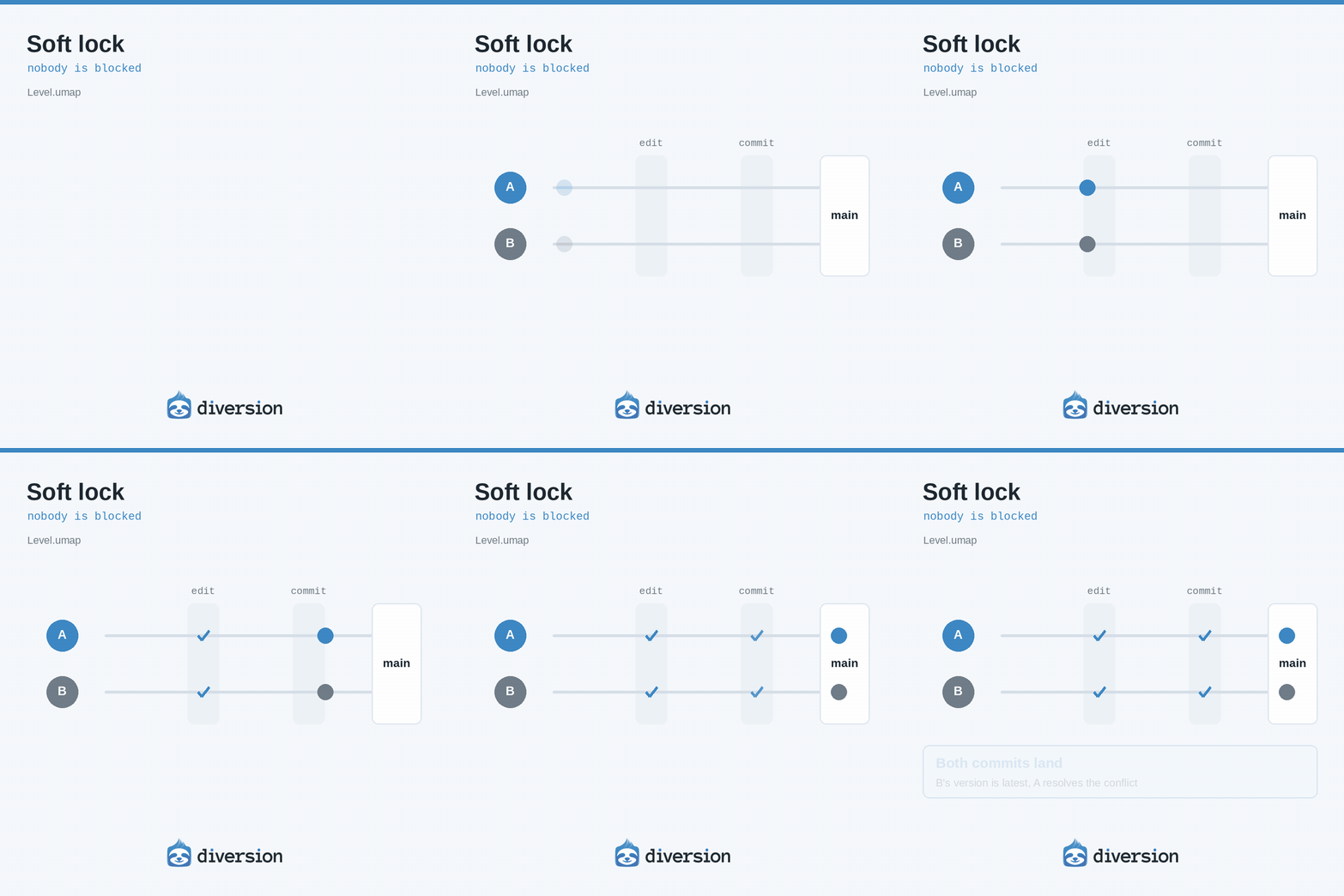
On the same branch, the sequence runs like this:
- User A starts editing
Level.umap. Nothing is reserved, and the file stays writable for everyone. - A warning icon appears on that file for everyone else on the branch. Clicking it shows that User A is editing.
- User B edits it anyway. Nothing blocks them, there is no checkout to wait on, and nobody to chase for a release.
- User B commits first, so their version becomes the latest on the branch.
- User A hits a conflict with their uncommitted changes and resolves it.
On separate branches nothing happens until someone merges, and the difference surfaces then as a merge conflict.
Neither version is lost in either case. User A's uncommitted work is never overwritten and User B's commit stays in history. The trade is that you settle the difference afterwards rather than being blocked up front.
That trade is fine on text. On an unmergeable binary it means somebody's afternoon gets redone. Which is why the indicator is most valuable on exactly those files, and why it is best treated as a prompt to message your teammate before you start, rather than something to sort out later.
Hard locks: making the commit exclusive
When "talk to your teammate first" stops being reliable enough, hard locks enforce it.
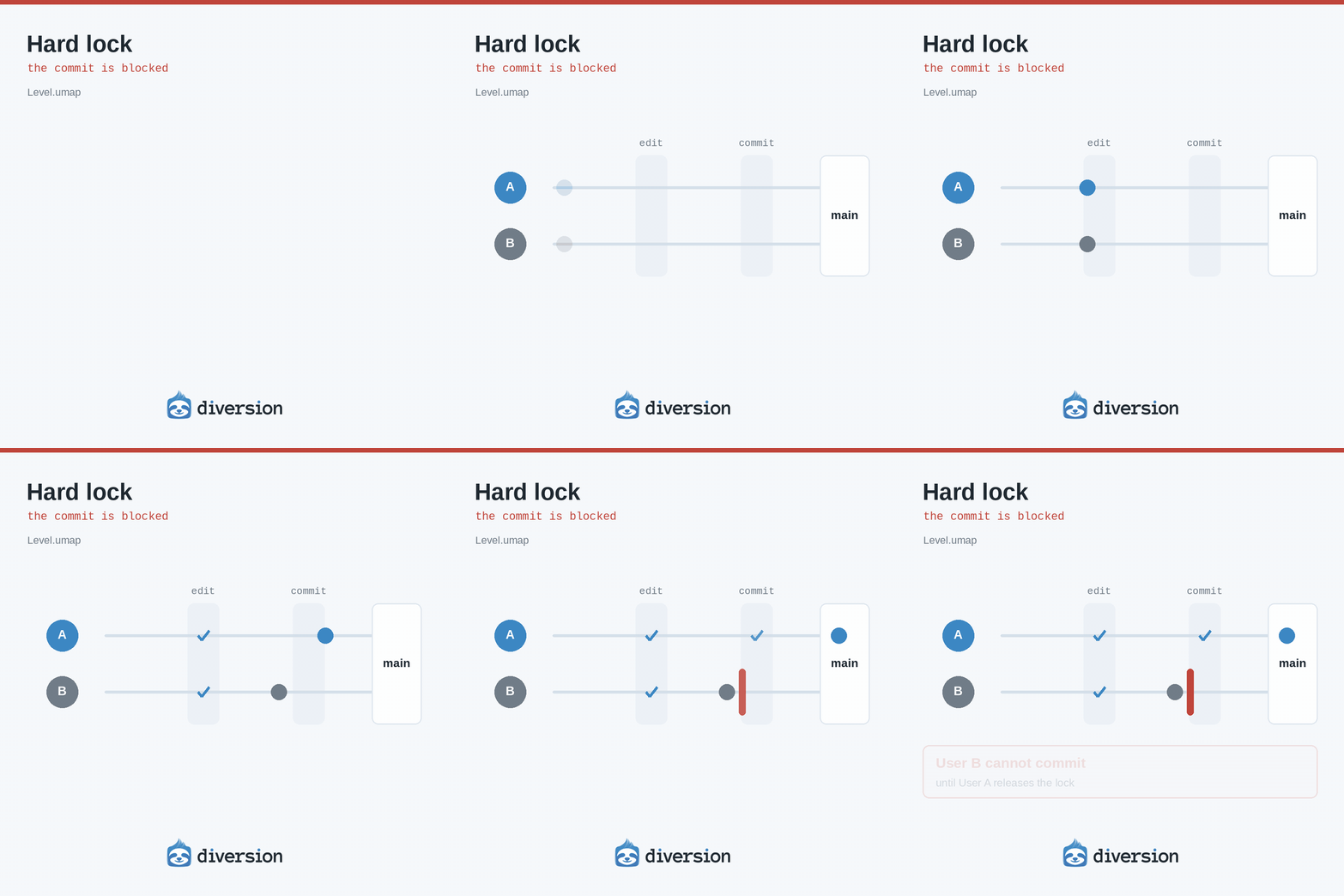
A hard lock gives one user exclusive write access to a path, which in practice means exclusive commit access. It is per repository and per path, and it is tied to the user who created it. Once a path is locked, only that user can commit changes to it.
If someone else edits a locked file locally, they get a warning and the edit still saves. What gets blocked is the commit. In Unreal, opening a locked asset shows a dialog naming the holder and offers to open it read-only or open it normally. Opening is never blocked. The lock is enforced when you try to commit.
Only the locking user, or a repository admin or owner, can release a lock.
Locking and releasing
In the desktop or web app, right-click a file or folder in the tree and choose Lock. A lock icon appears next to the path showing who holds it. Right-click and choose Unlock to release.
From the CLI:
dv lock <path> # lock a path
dv lock -d <path> # release a lock
dv lock # list all locks in the repository
In Unreal, the Content Browser's Revision Control submenu has a Diversion Locks section with Lock, Unlock, and Force Unlock. Force Unlock only appears when the asset is locked by someone else, asks for confirmation, and needs repository admin permissions.
Auto-lock and auto-release
Locking by hand every time does not survive contact with a real production schedule, so two settings do it for you.
Auto-lock works on file patterns. A repository admin adds extensions, for example .uasset, .umap and .fbx, and matching files are locked automatically when a user's saved changes sync to their workspace. In Unreal, saving a matching asset locks it for you a few seconds later with no dialog. If the file is already locked by someone else, auto-lock does not apply and the existing lock stands.
Auto-release works on branches. An admin picks which branches trigger it, and when the locking user commits or merges to one of those branches, their locked files in that commit are released.
Together these are what make hard locks liveable. Without them, somebody always ends up on holiday holding a lock on the main level.
So which one do you need?
Soft locks are on already and cost nothing, so the real question is whether you need to go further.
You probably do not, if your team is small enough that people notice a badge and send a message, or if most of your conflicts are on text.
You probably do, if your unmergeable binaries are the project's critical path, if people are redoing work more than occasionally, or if your team is large enough that "just ask first" has quietly stopped happening. Hard locks are available on the Studio and Enterprise plans.
If you are coming from Perforce and used to an exclusive checkout holding a file until it is released, Diversion hard locks are the closest equivalent. Auto-lock removes most of the need to remember to lock those files manually.
Related


