
Cloud-native version control, right inside Unity
Diversion Connect is the Unity plugin for Diversion, a cloud-native version control service built for large binary projects. Sync, commit, and branch large game and creative projects without switching tools.
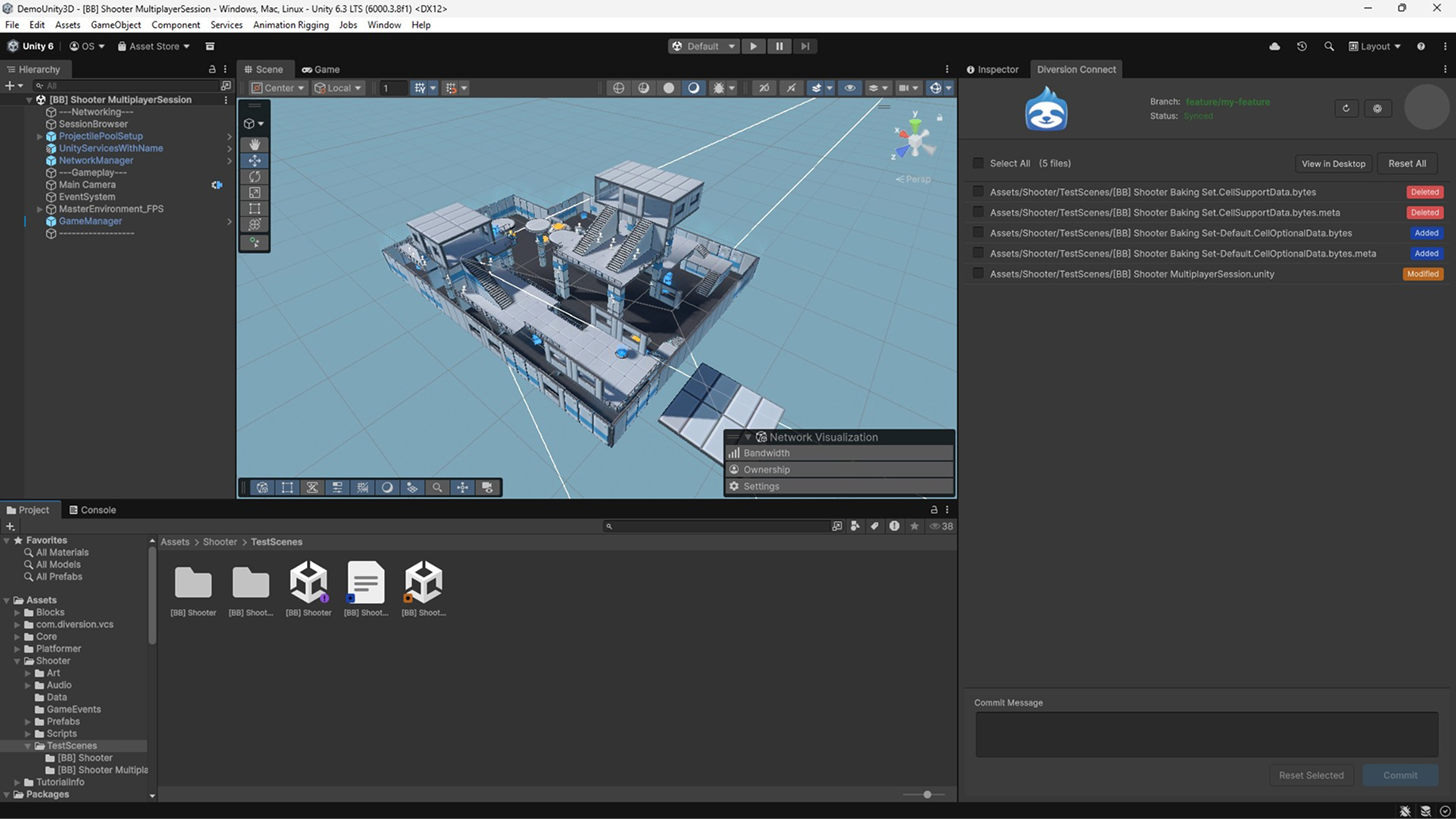
Version code and large assets together, without leaving Unity
Diversion Connect brings sync status, commits, branches, and change history into the Editor - so your whole team can collaborate on projects in one place.
Plug & Play Integration
Install the plugin, enable it, and start working. No complex configuration or setup scripts. Diversion works with your existing Unity project structure.
Live Sync & Branch Info
Branch name and sync status show directly in the Editor. See at a glance whether you're synced, syncing, or paused, and which branch you're on.
Conflict Prevention Alerts
Get warnings before conflicts happen. When you open or save a file a collaborator is also editing, Diversion alerts you immediately, with visual clash indicators in the Project window.
File Status at a Glance
Color-coded status icons overlay your assets in the Project window: green for added, orange for modified, red for deleted. No separate window needed.
Selective Commits & Resets
Choose exactly which files to include in each commit. Reset individual files or all uncommitted changes, with confirmation dialogs to prevent accidental data loss.
Cloud Backup at Scale
Your work syncs continuously to the cloud and stays backed up. Diversion scales from solo projects to massive game productions.
Using Diversion with Unity
From account to first commit in a few minutes.
Create an account and install the desktop app
Install Diversion Connect for Unity
Connect your project to Diversion
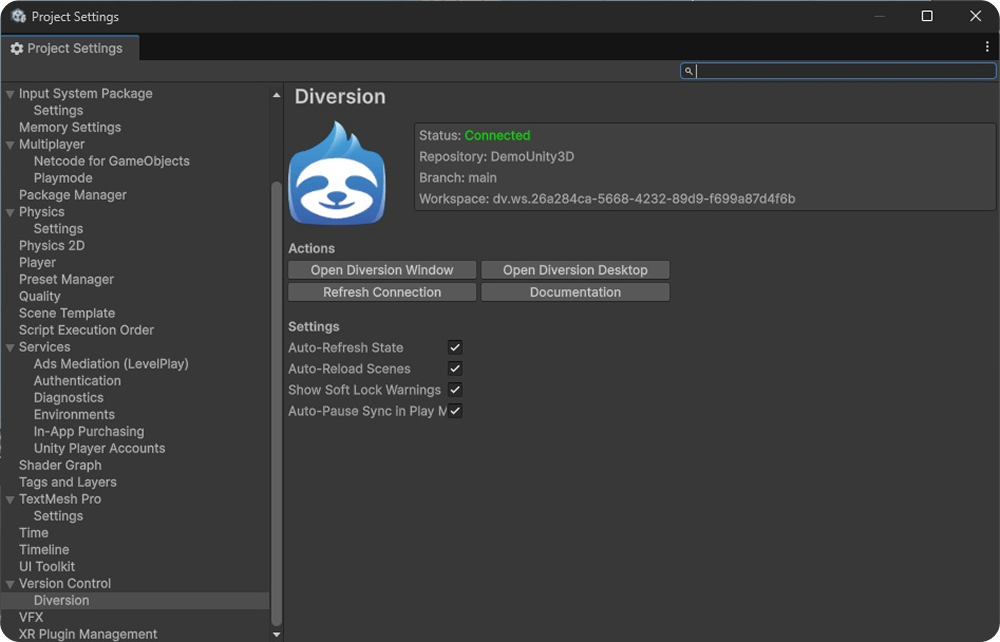
Connect once - the Diversion panel confirms your repository and branch.
Track and commit your changes
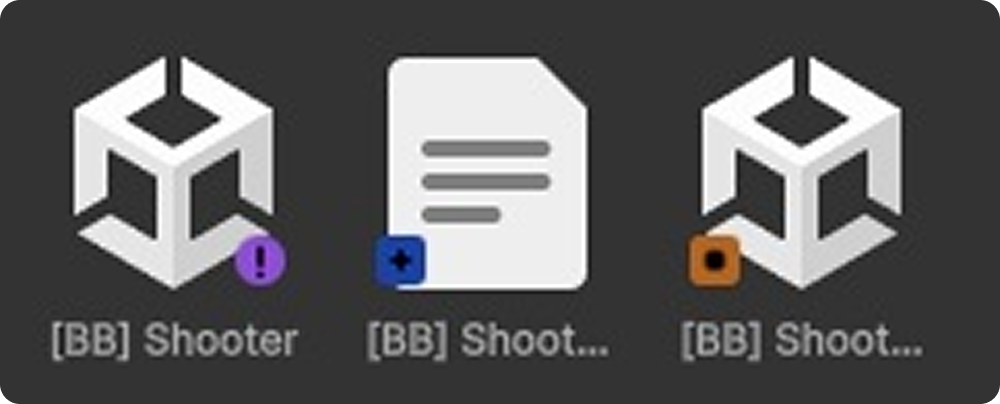
See file status directly in the asset view.
Collaborate without conflicts
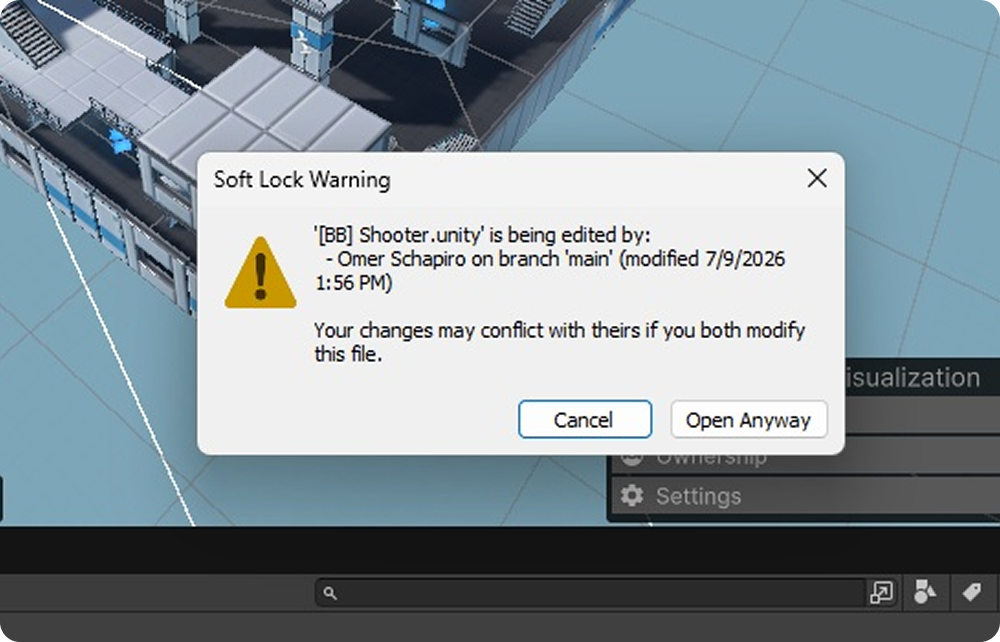
Soft locks warn you when a teammate is already editing a file.
Ready for something new?
Bring cloud-native version control for large game and creative projects into your Editor - free.
