
Version Control for Unreal Engine
How to set up Diversion to share assets with others on your team.

Diversion brings version control right into Unreal Engine. Manage large assets, prevent conflicts, and sync effortlessly, all without the overhead of legacy tools. Fully integrated through the official Fab plugin, Diversion lets your team share, track, and roll back assets or code changes with ease.
The most recommended VCS for Unreal rated 4.8

Official resources from Epic Games
Plug & Play Integration
Get started in minutes. No code tweaks or config headaches - just install and get going. Diversion works seamlessly with your existing Unreal setup.
UGS & Horde Support
Full compatibility with Unreal Game Sync and Horde. The Horde installer is available today, and a Diversion-ready UGS installer is coming soon to make onboarding effortless - even for massive studios. *Talk to us for early access
Live Sync & Branch Info
See exactly what’s happening - live. Branch details and sync status are displayed right inside Unreal, keeping every artist and developer aligned.
Conflict Prevention Alerts
No more “who overwrote my work?” moments. Diversion warns you before conflicts happen, on asset open and on save - so your team can stay in flow.
Smart Asset Reloading
Only in the Diversion plugin - when someone updates an asset, it reloads automatically. No manual refresh, no restarts, no lost work (opt-in setting in the plugin).
Optimized Unreal Experience
Lightweight by design. The plugin runs quietly in the background, barely noticeable, until you realize everything just works better.

Using Diversion with Unreal Engine
Downloading and Installing Diversion
Once you have your account, log-in to and get the Diversion desktop app.
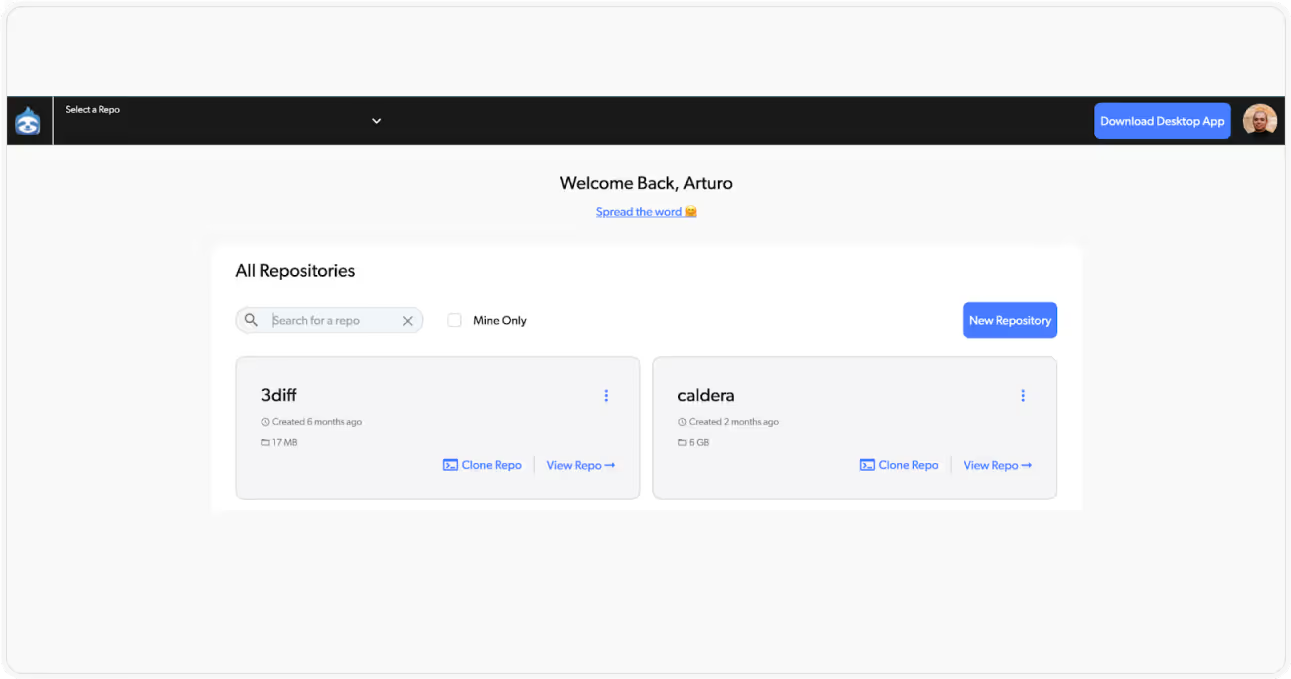
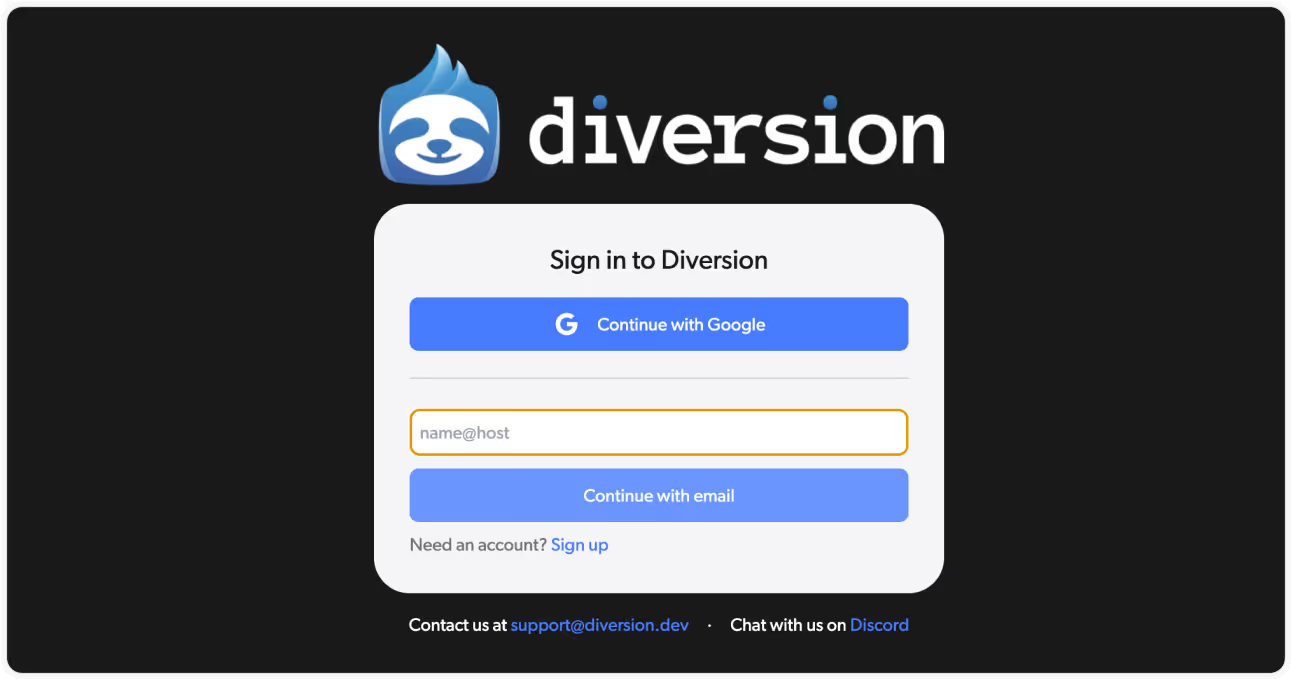
Once installed, run the Diversion desktop app and log in with your credentials.
Setting up the Diversion plugin for Unreal Engine
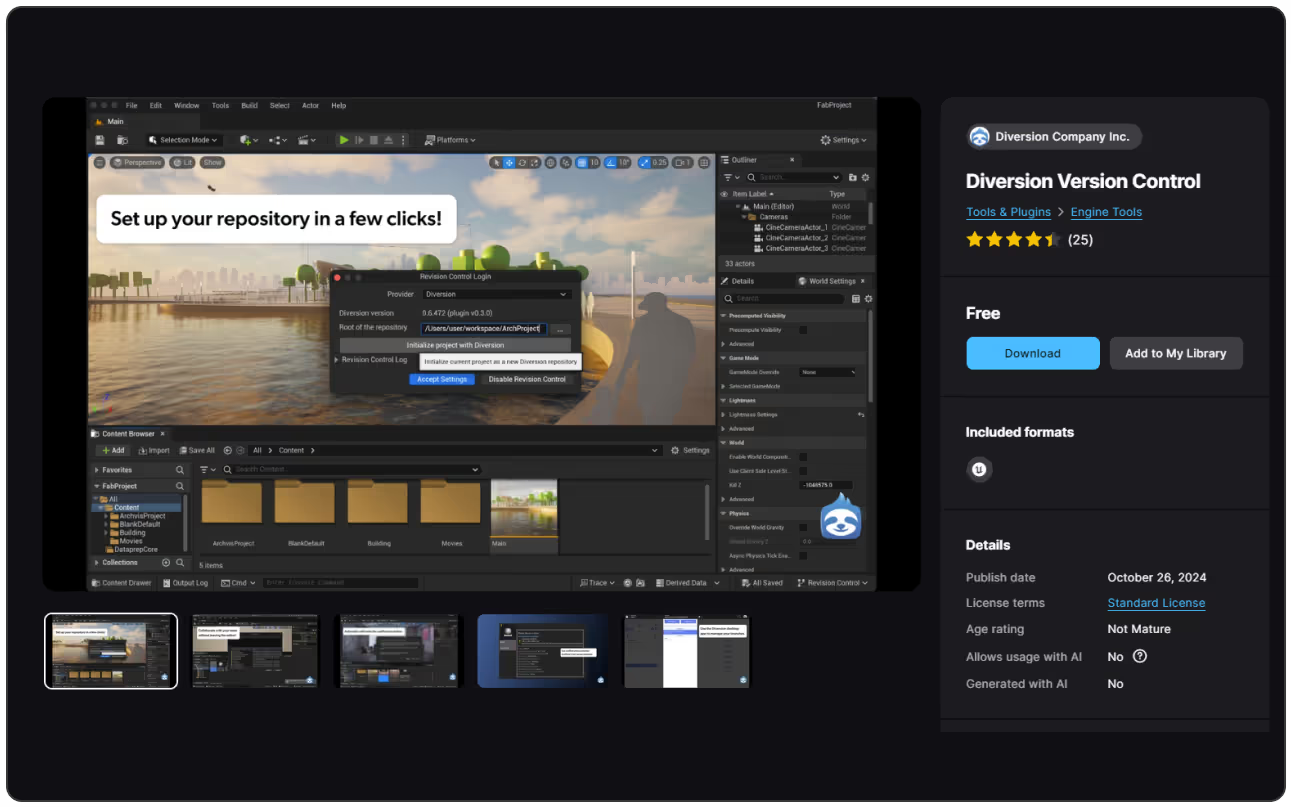
Once you have Diversion up and running in your computer, you can get the Diversion plugin for the Unreal Engine. It’s free!
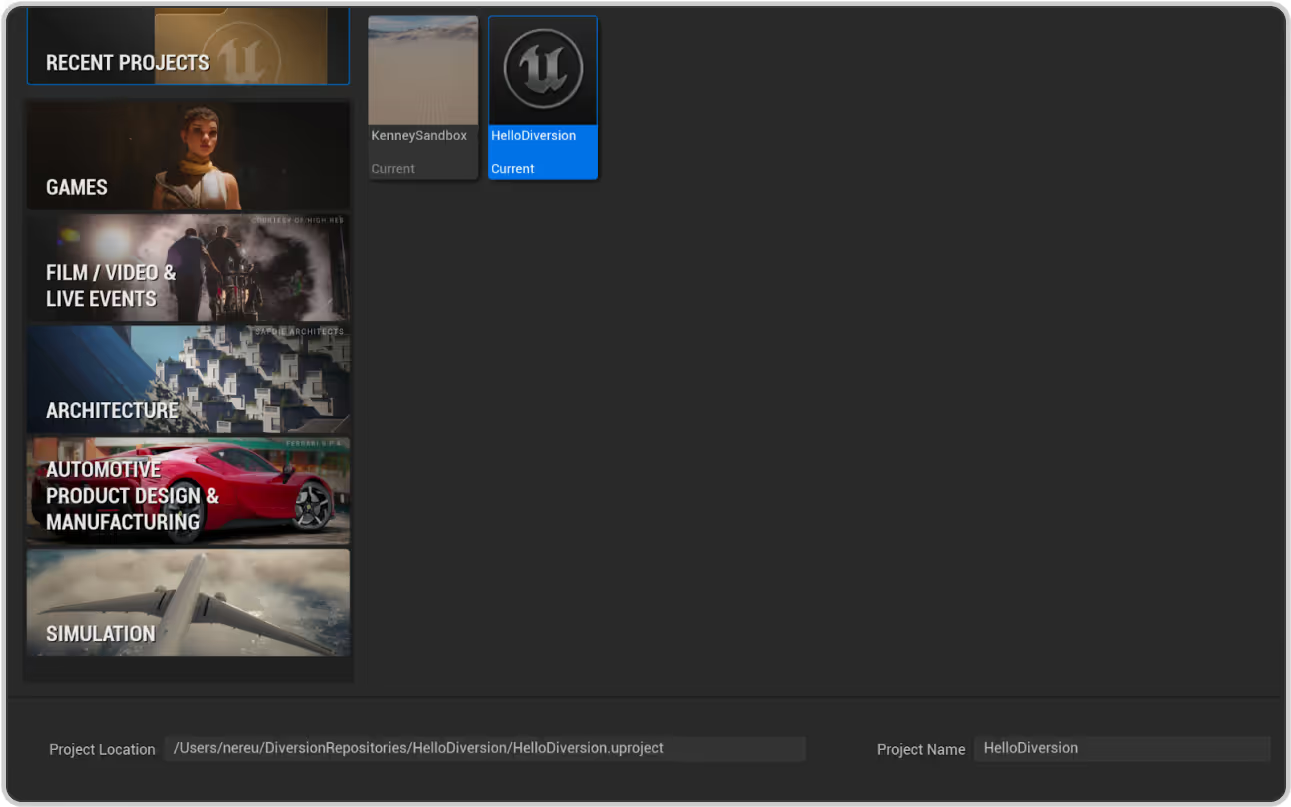
Launch the Unreal Editor and open or create a project you want to set up with Diversion.
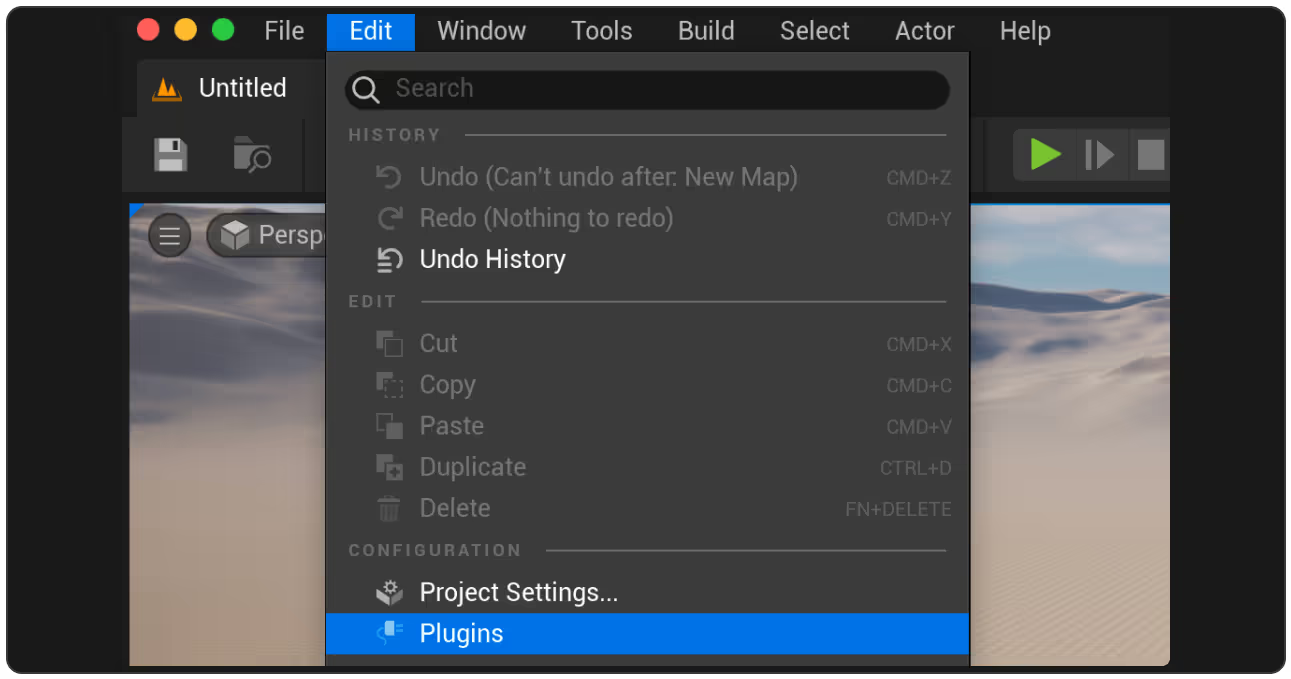
Once the editor is open, let’s activate the plugin. Go to Edit > Plugins.
Search for “Diversion” and activate it. The Unreal Editor will ask you to restart. Click on “Restart Now”.
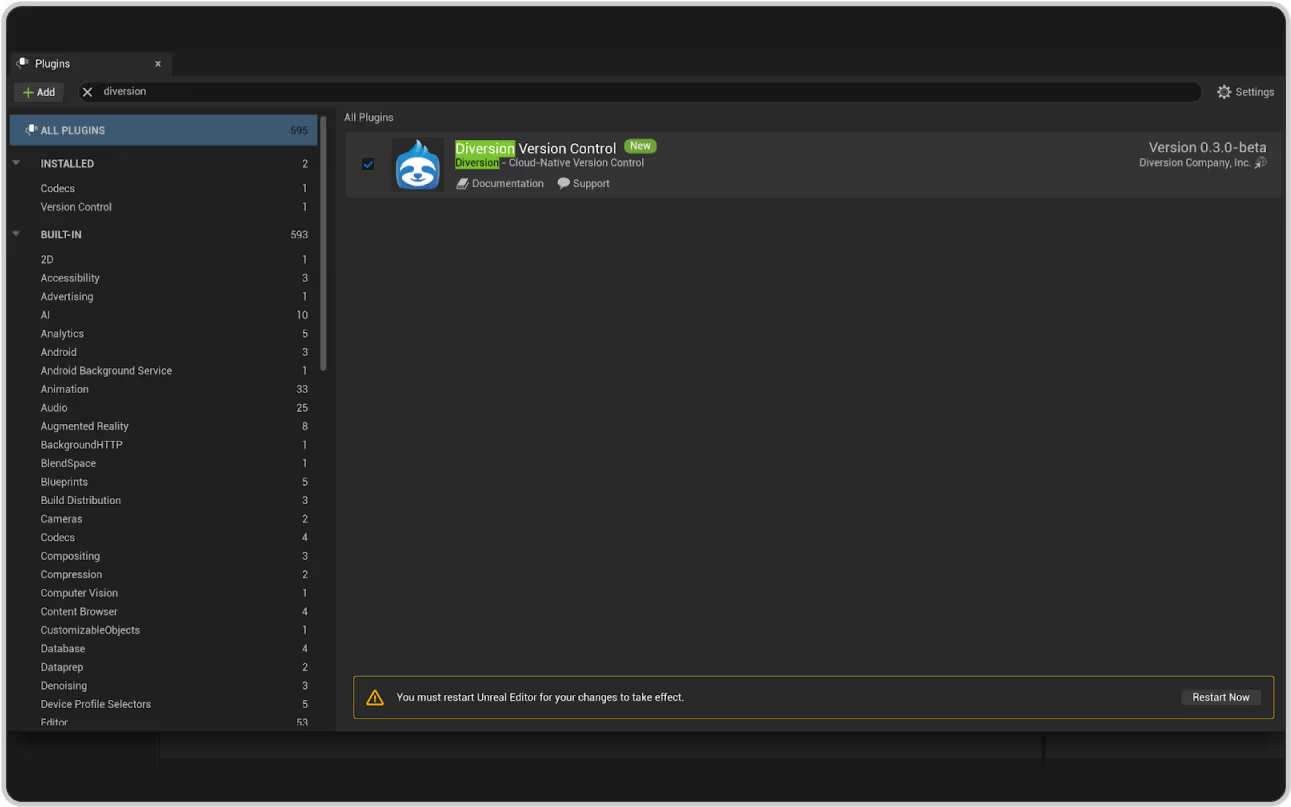
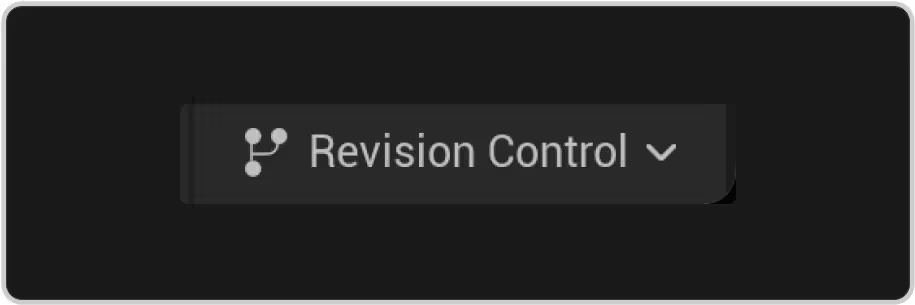
With the plugin installed, go to the lower right corner of the editor and click on “Revision Control”.
From there, select “Diversion” as your provider.
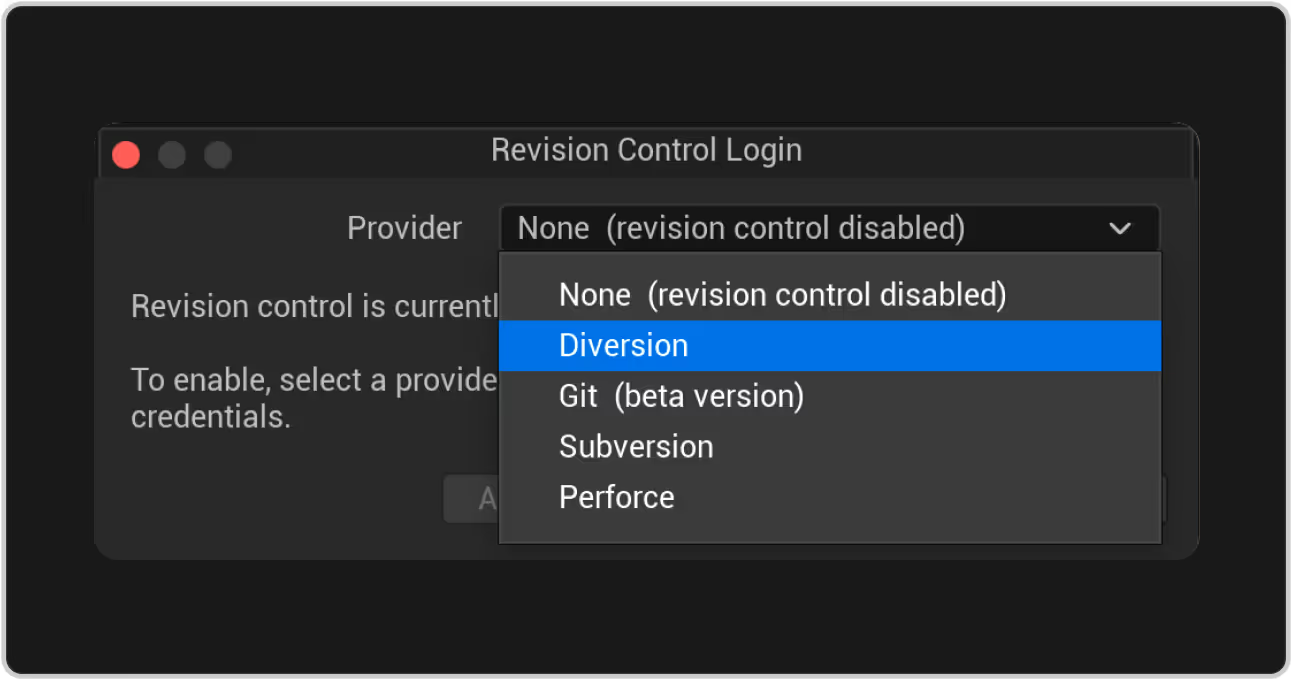
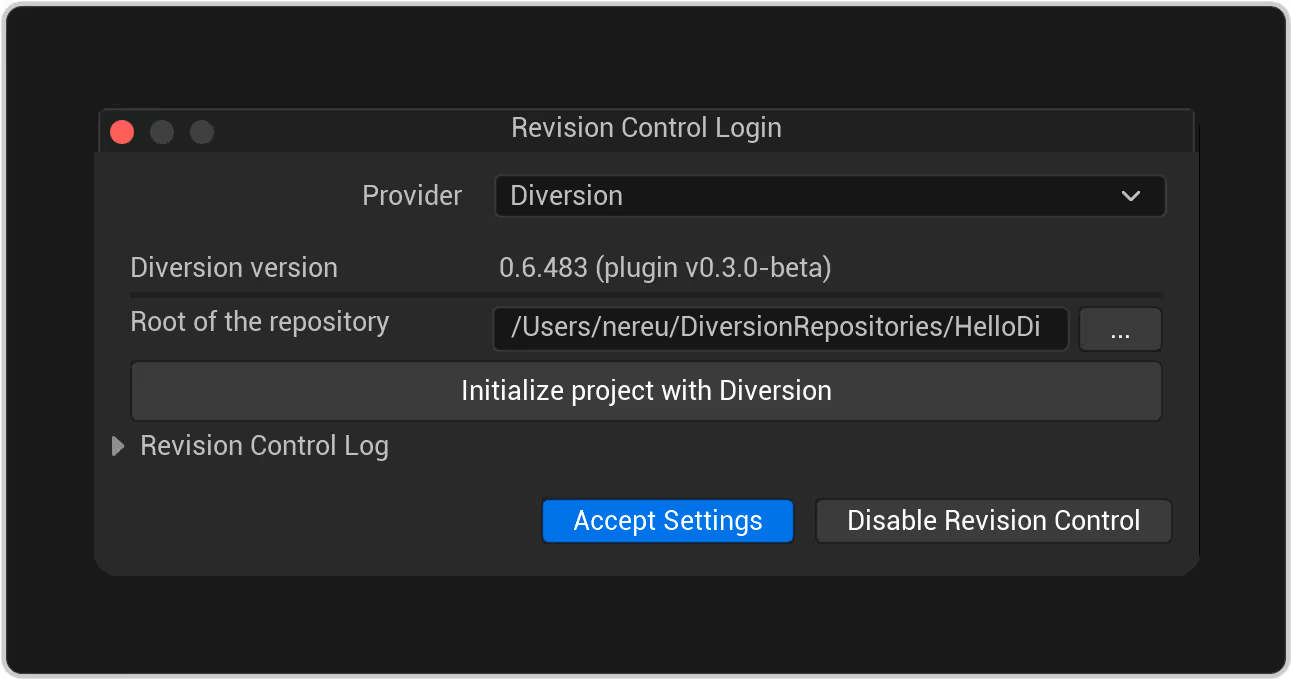
If this project is not a Diversion repository, you will be prompted to initialize it as one. Click on “Initialize project with Diversion”.


Using Diversion with Unreal Engine
In the Content Browser, select any file (or files) you want to add to the repository. In this example, I created a new Blueprint named “ExampleBP”.

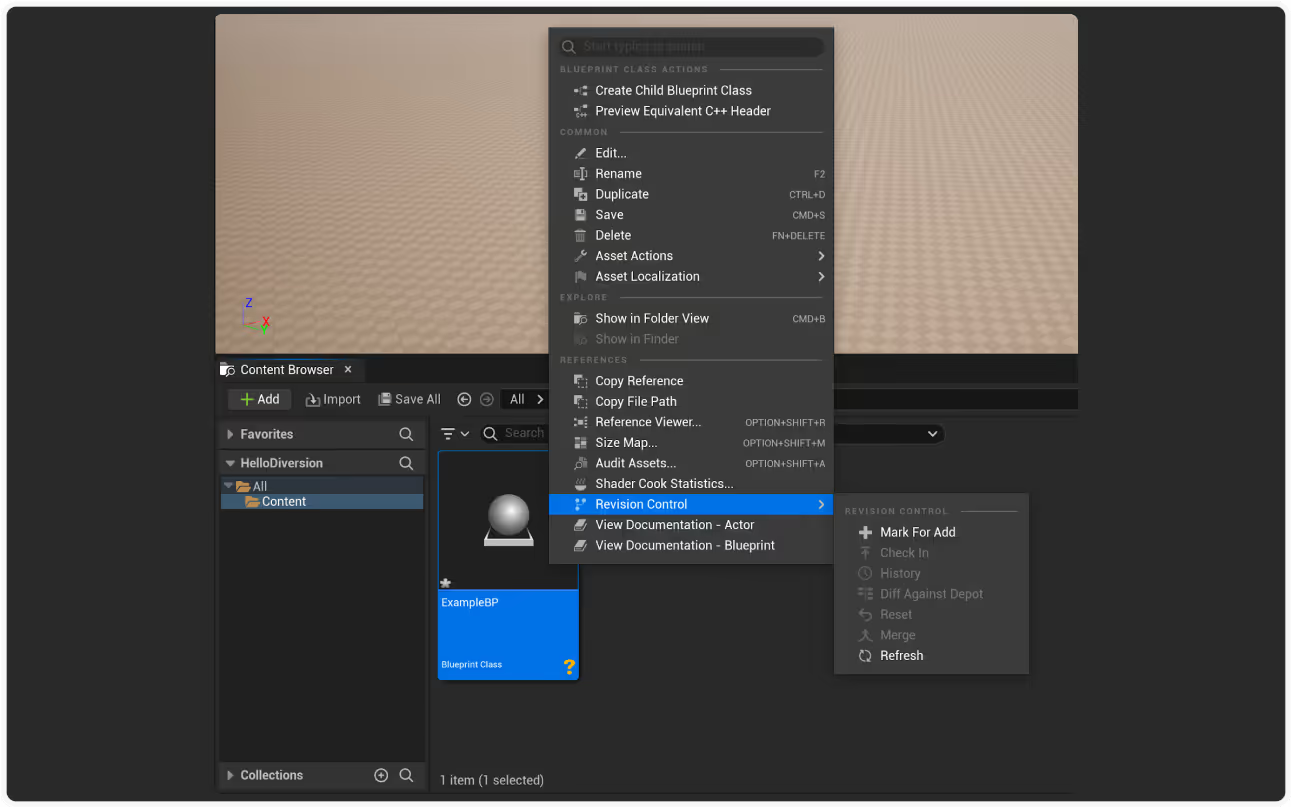
Diversion is showing the “?” symbol, that means the file is not being tracked. Right click on it and select “Revision Control” > “Mark For Add”.
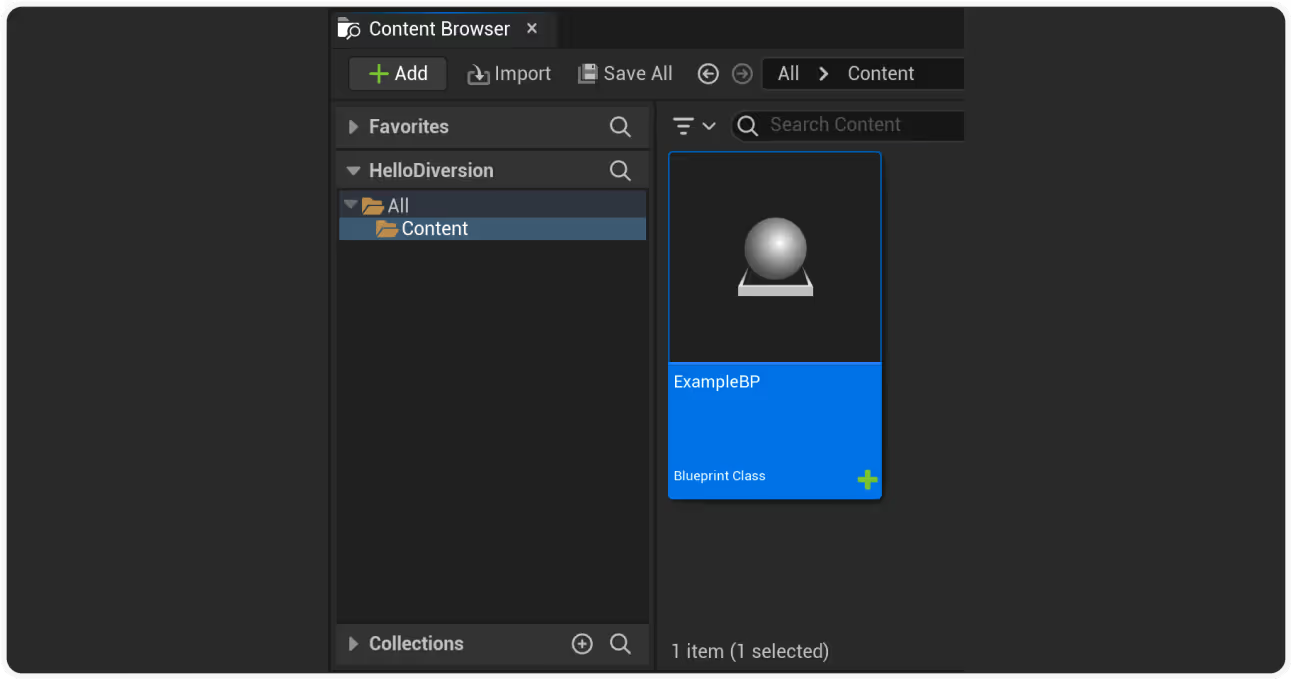
This action tells Diversion to keep track of all the changes that happen to that asset. See how our Blueprint now has the “+” icon.
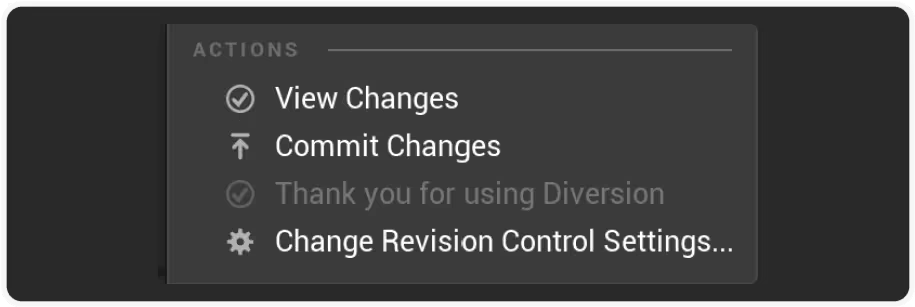
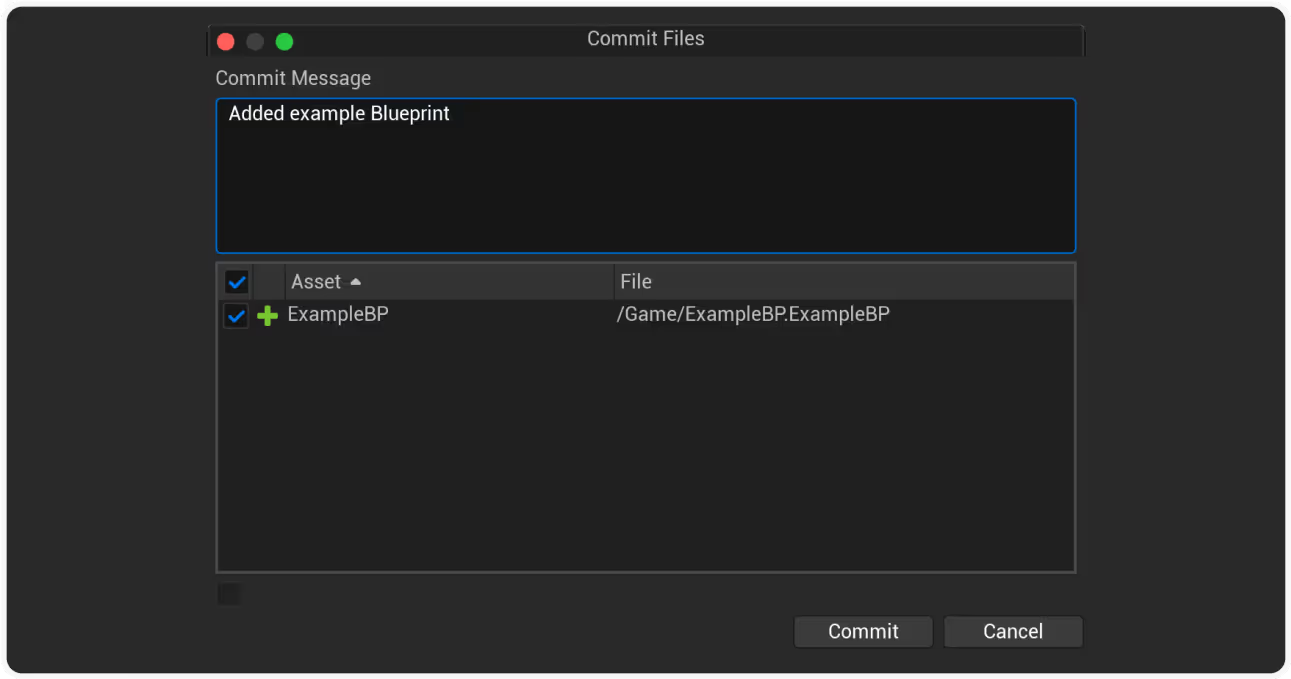
Finally, let’s “commit” our changes, in this case the addition of the Blueprint. Again, in the lower right corner, click on “Revision Control” and then “Commit Changes”.
A new prompt window will appear. Here, you will write your commit message, as well as check the files that you want to commit.
Frequently Asked Questions
Is Diversion officially supported by Unreal Engine?
Yes. Diversion is officially recommended by Epic Games as a version control solution for Unreal Engine. The Unreal Engine plugin is available on FAB and is the highest-rated VCS plugin in the marketplace. Full Epic Games documentation: https://dev.epicgames.com/documentation/en-us/unreal-engine/diversion-version-control-in-unreal-engine
Does Diversion handle large Unreal Engine files like .uasset, .uexp, and .umap?
Yes. Diversion is built for large binary files and handles the entire Unreal Engine asset chain — .uasset, .uexp, .umap, .upk, and content folders — without the size limits or performance issues that come with Git LFS. Commits scale to hundreds of thousands of files in under a minute.
Does Diversion support Unreal Game Sync (UGS) and Horde?
Yes. Native UGS and Horde integration is supported. Teams running Unreal Game Sync workflows can use Diversion as the underlying version control system without giving up the UGS user experience.
Can I migrate my Unreal Engine project from Perforce to Diversion?
Yes. Diversion provides automated Perforce migration tools that import your repository history and automatically adapt custom Perforce tooling. Hands-on migration support is included for a risk-free transition.
How does Diversion handle merge conflicts in Unreal Engine projects?
Diversion helps Unreal Engine teams reduce merge conflicts before they happen. For binary assets that are difficult or impossible to merge, Diversion supports exclusive file locks and conflict-prevention alerts, including cross-branch checks that warn users when another teammate is working on the same asset. For code and mergeable files, Diversion supports modern branching and review workflows so teams can review changes before merging them. This helps Unreal Engine teams avoid broken assets, reduce duplicated work, and keep collaboration smoother across developers and artists.
Does Diversion's Unreal Engine plugin require setup?
Installation is straightforward. The plugin is available on FAB (Epic's official marketplace), installs with one click, and connects to your Diversion repository. No server setup required if you're using Diversion Cloud.
